TL;DR: There are times in which the functionality of an SAP Fiori App is not enough. In this blog, we investigate if it is possible to add an adaptation project to the corresponding Fiori App. Furthermore, we provide tips and best practices for developers.
Adaptation projects offer a great way to extend the SAP standard apps. This blog gives an introduction about what requirements have to be met, and it should also serve as a cheat sheet for developers. Thus, the blog is split up into two main sections. The first one ensures feasibility whereas the second part focuses more on the development side of an adaptation project.
Feasibility of an Adaptation Project
Adaptation Project
Adaptation Projects are used to meet customer requirements in SAP Standard Apps. Examples can be adding custom behavior which will be invoked by pressing an added button to the standard app.
Be aware that not every standard app delivered by SAP can be extended with an adaptation project. Only the apps which are developed with SAP UI5 can be extended this way. In the Fiori apps library, it is easy to determine the developing language of the app.
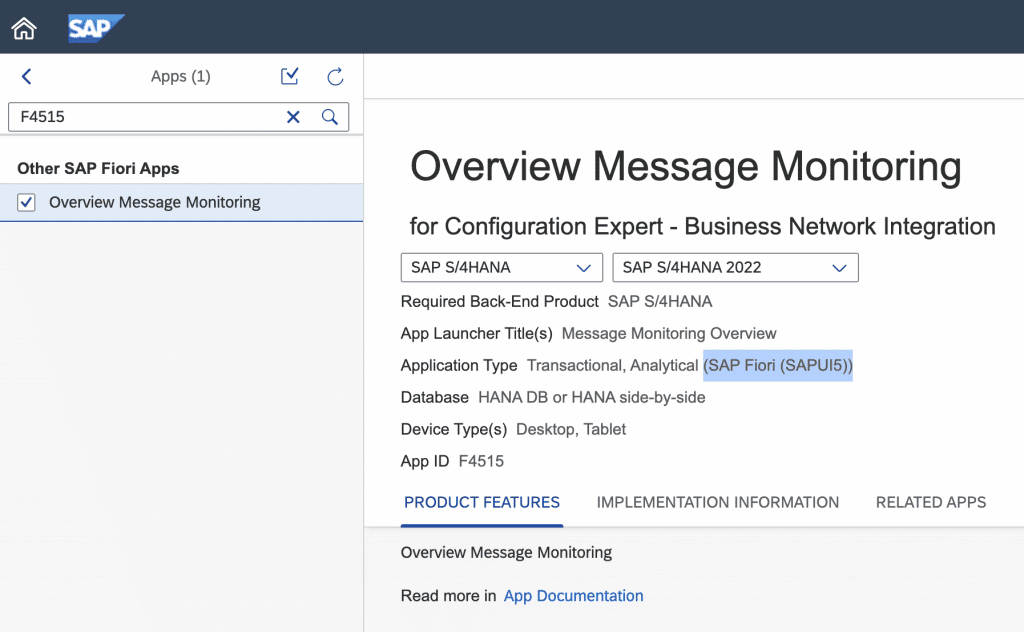
Once the criteria are met and the app can be extended with an adaptation project the visual editor comes into place. The visual editor is integrated into the SAP Business Application Studio (SAP BAS) which allows the user to adjust the properties of the standard app as well as to add custom controls and logic. To do so rightclick on the area which should be extended and add your control or logic.
There is a safe mode that can be activated, this one should ensure that the extension will work with future system upgrades.
Make the Adaptation project visible
To test the adaptation project in the original app the launchpad customizing has to be adjusted. Therefore it is best practice to create a new mapping for the routing as well as a new tile which will then open the created variant. Hence, the standard app will still be available if in the deployed extension an error occurs. The target mapping requires the parameter sap-appvariant-id and should look like the following:
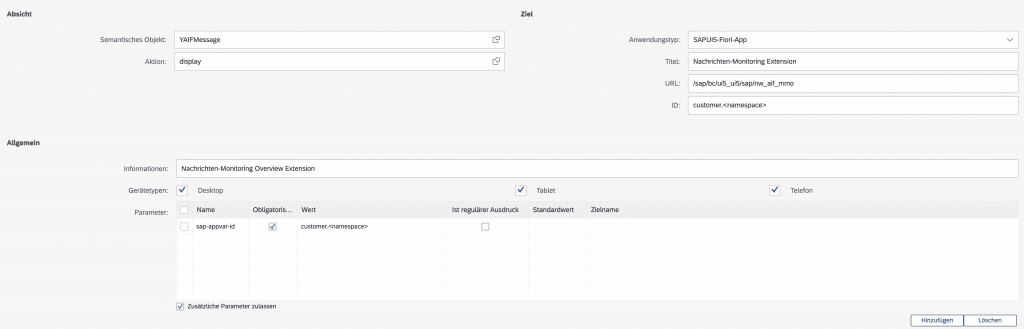
Once the target mapping is created the app variant (the adaptation project) can be called by using the # of the original app in combination with the URL parameter sap-appvar-id: #YAIFMessage-display?sap-appvar-id=customer.<namespace>
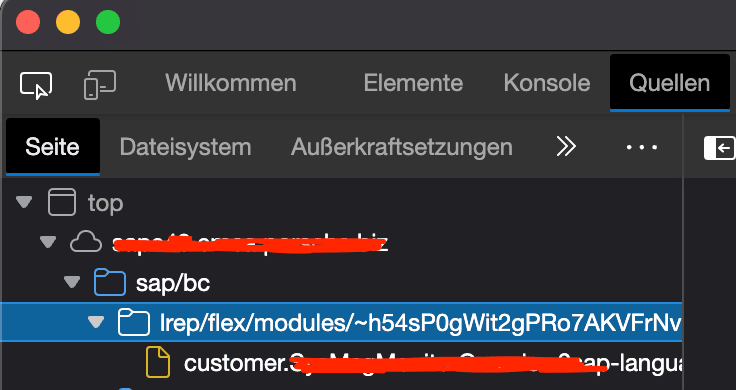
To ensure, that the adaptation project is called the inspector is required. Above the directory of the developed and standard apps there will be another directory for adaptation projects.
Debug extension
In the inspector, you then can see that a directory lrep/flex/modules which contain the extension.
In this directory, you can find the coding of your adaptation project. If this entry is not listed then it is a hint that there might be a syntax error within your extension.
Useful tools by SAP
SAP delivered some useful tools to further investigate an app. As a reminder those tools are listed with the corresponding keyboard shortcuts.

Development of an Adaptation Project
Extension coding
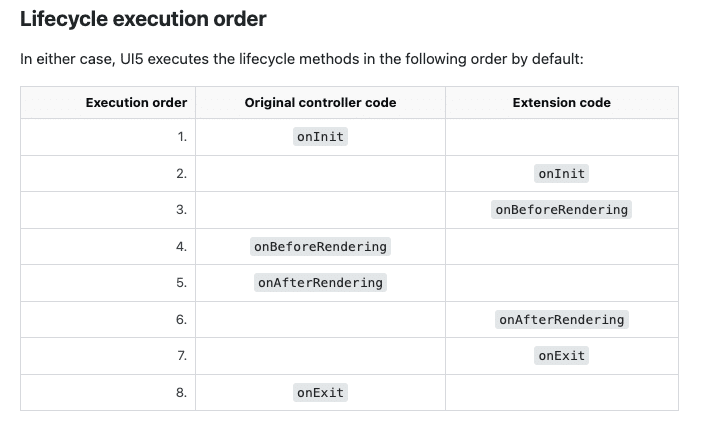
In the adaptation project it is possible to either override the methods of the extended controller (be careful on this one), to define your methods and execute them as well as to override the lifecycle methods of the standard app. When overriding lifecycle methods be aware that your coding in the extension will not replace the coding of the standard app – rather your coding will be called before or after the lifecycle method of the standard app. See the following picture as a demonstration.
return ControllerExtension.extend("customer.<namespace>.ExcelReport", {
    override:{
        onInit: function(oEvent){
            ...
        },
        onAfterRendering: function(oEvent){
            ...
        }
    },
    myMethod(){
      ...
    },
    anotherMethod(){
      ...
    }
})
The context of the controller extension can be retrieved via
this.base.extension.<namespace>(in the debugger). The context of the extented controller can be retrieved via
this.base.getView().getController()Contexts and extension Methods
The following information lists the commands to navigate between the contexts of the controller and the extension. Hence, use the controller context of the original app as well as the context of the extension.
Context of the extension
this.base.extension.<namespace>
this.base.extension.customer.SysMsgMonitorOverview.OverviewExtension
this Context of the current controller
this.base.<variable> = 'abc'Controller of the current view
this.base.getView().getController()Helpfull skills
Further helpful skills which might come in handy are:
- UI5 Eventhandling
sap.ui.getCore().getEventBus().publish("YourEventChannel", "getAllData", {})
sap.ui.getCore().getEventBus().subscribe(
                        "YourEventChannel",
                        "getAllData",
                        this.getAllData,
this);- Basic jQuery
- to retrieve a control if it is available (fully rendered and with available data)
- to automatically scroll up and down in an section
var intervalId = setInterval(
    () => {
        var oExtContext = this.base.extension.customer.namespace.OverviewExtension
        // if the cards (especially the headers) are rendered
        if ($("div[id*='cardHeader']")[0]) {
            ...
            window.clearInterval(intervalId);
        }

    },1000, this, intervalId);
Problems which can occur
- More than one extension project could be required while navigating to a detail view (check the app-ID after navigating)
- If the standard app uses the OData v4 Model it can be very hard to retrieve the data which are binded to the view. Since the Model / Context methods getProperty() and getObject() are not available in the v4 Model. On a binding (get it from the view) it is possible to use the method requestObject() which then will return a promise.
await this.base.getView().byId(<id>).getBindingContext().requestObject()
    .then(function(oData) {
        ...
    })
    .catch(function(oErr) {
        ...
    })
This post is part IV of a blog series.
Read also part I: Fiori Introduction
part II: Fiori Customization


