Deprecated: Creation of dynamic property Pusher\Log\Logger::$file is deprecated in /html/wordpress/wp-content/plugins/wppusher/Pusher/Log/Logger.php on line 18
Deprecated: Creation of dynamic property Pusher\Log\Logger::$file is deprecated in /html/wordpress/wp-content/plugins/wppusher/Pusher/Log/Logger.php on line 18
Deprecated: Creation of dynamic property Pusher\Dashboard::$pusher is deprecated in /html/wordpress/wp-content/plugins/wppusher/Pusher/Dashboard.php on line 68
Deprecated: Creation of dynamic property Pusher\Log\Logger::$file is deprecated in /html/wordpress/wp-content/plugins/wppusher/Pusher/Log/Logger.php on line 18
Deprecated: Creation of dynamic property Pusher\Log\Logger::$file is deprecated in /html/wordpress/wp-content/plugins/wppusher/Pusher/Log/Logger.php on line 18 Fiori Archives - j&s-soft
Fiori ist die SAP Design-Guideline für UI5 Apps. Die bereitgestellten SAP-Apps werden auch Fiori-Apps genannt. UI5 Apps können mit Fiori Launchpad eingerichtet werden, müssen es aber nicht.
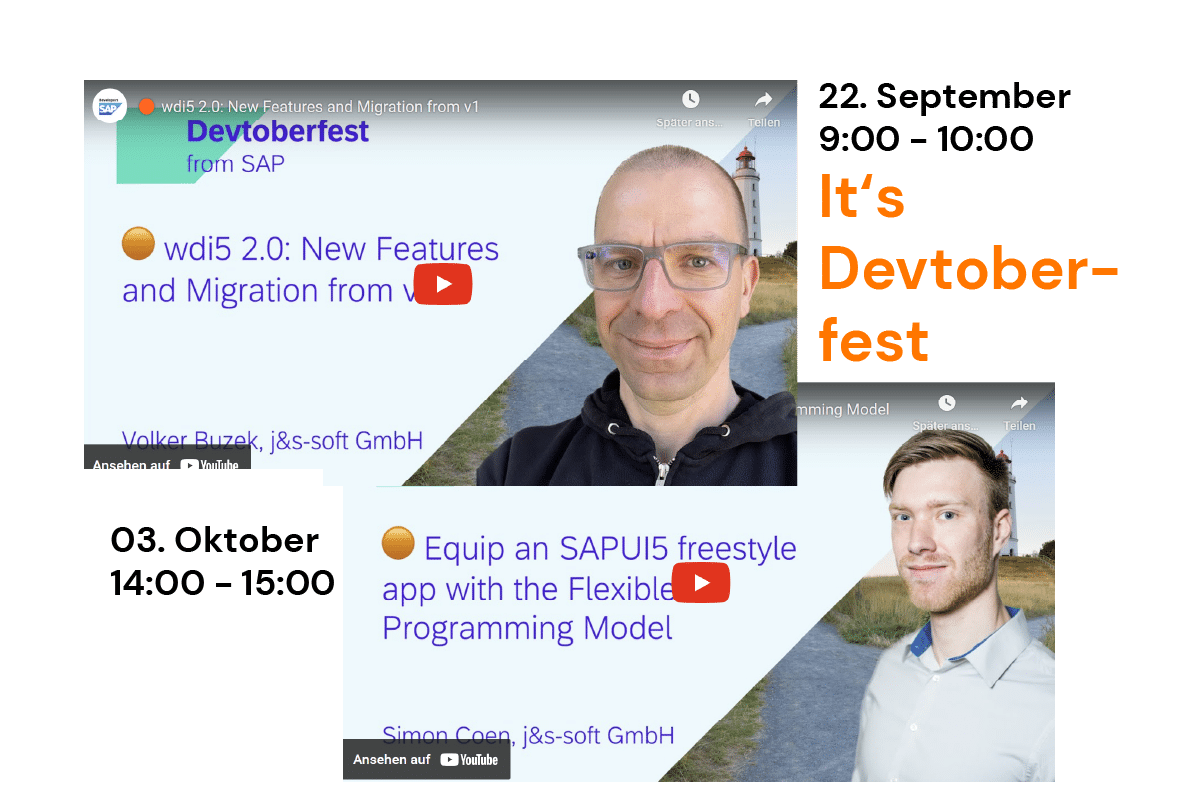
Das SAP Devtoberfest fand dieses Jahr vom 18. September bis zum 13. Oktober statt. Zwei unserer Kollegen hielten Vorträge auf der beliebten SAP Veranstaltung, die rein virtuell stattfindet. Den Anfang machte Volker Buzek am 22. September mit dem Thema “wdi5 2.0: Neue Funktionen und Migration von v1“. Er sprach über Version 2 von wdi5, dem End-to-End-Testing-Tool für UI5. Die Version 2 bietet vor allem Kompatibilität mit WebdriverIO v8, einschließlich Unterstützung für BiDi, das Automatisierungsprotokoll der nächsten Generation. Er stellte die neuen Funktionen von wdi5 2.x vor und erläuterte, wie man von v1 auf v2 migriert – mit minimalem Migrationsaufwand.
Video siehe unten!
Am 6. Oktober sprach Simon Coen von 14:00 Uhr bis 15:00 Uhr über “Equip a SAPUI5 freestyle app with the Flexible Programming Model“. In seiner Session zeigte er, wie man Building Blocks, auch bekannt als Macros (“OData v4 controls”), zu einer UI5 freestyle App hinzufügt. Die Building Blocks sind Teil des “Flexible Programming Model” (FPM). Es handelt sich um metadatengesteuerte Steuerelemente, die auf OData v4 basieren und erweiterte Funktionen wie filterbare Tabellen und visuelle Datendarstellung in Diagrammen implementieren. Sie kennen bisher nur das Flexible Programming Model in Fiori Elements Anwendungen? Hier erfahren Sie, wie Sie es in UI5-Freestyle-Anwendungen wiederverwenden können.
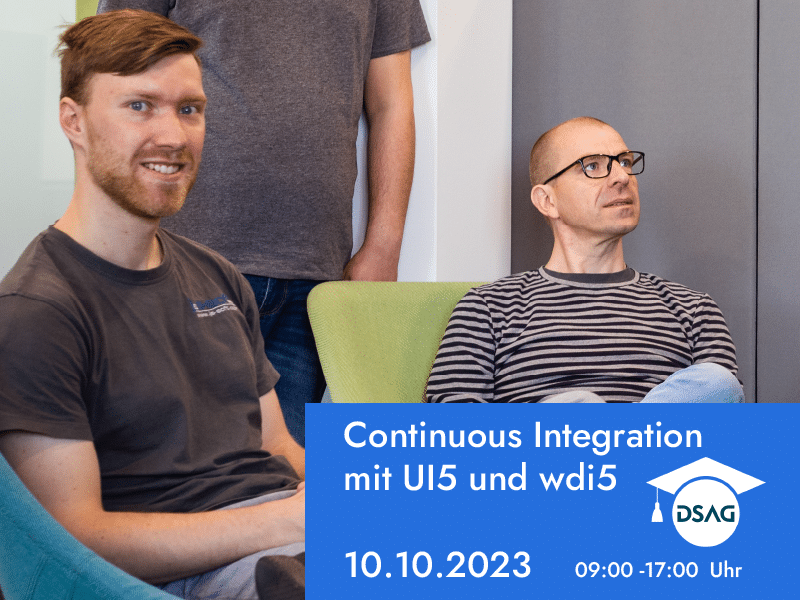
Update: Wegen der hohen Nachfrage, bieten Volker Buzek und Simon Coen den Workshop am 10.10.23 noch einmal an. Die Anmeldung ist unter bei der DSAG Academy hier ab jetzt möglich.
An alle UI5-Entwickler/innen, die DSAG-Mitglied sind: Unsere Kollegen Volker Buzek und Simon Coen bieten ein wdi5-Training an: „Continuous Integration mit UI5 und wdi5“. Mit wdi5 lassen sich automatisierte Tests während der Entwicklung und im Continuous Integration-System für Freestyle- und Fiori Elements etablieren. Erfahrt, wie man wdi5 erfolgreich nutzen kann und mehr Spaß durch sichere Qualität hat.
Lernziele des Workshops:
wdi5 während der UI5 Entwicklung nutzen können
wdi5 auf Freestyle- und Fiori Elements UI5 Anwendungen anwenden können
Automatisierte Tests mit wdi5 in DevOps pipelines (speziell GitHub) durchführen können
Anbindung an Testcloud (Saucelabs, browserstack) zur Verbreiterung der Testszenarien browser- und plattformübergreifend ermöglichen können
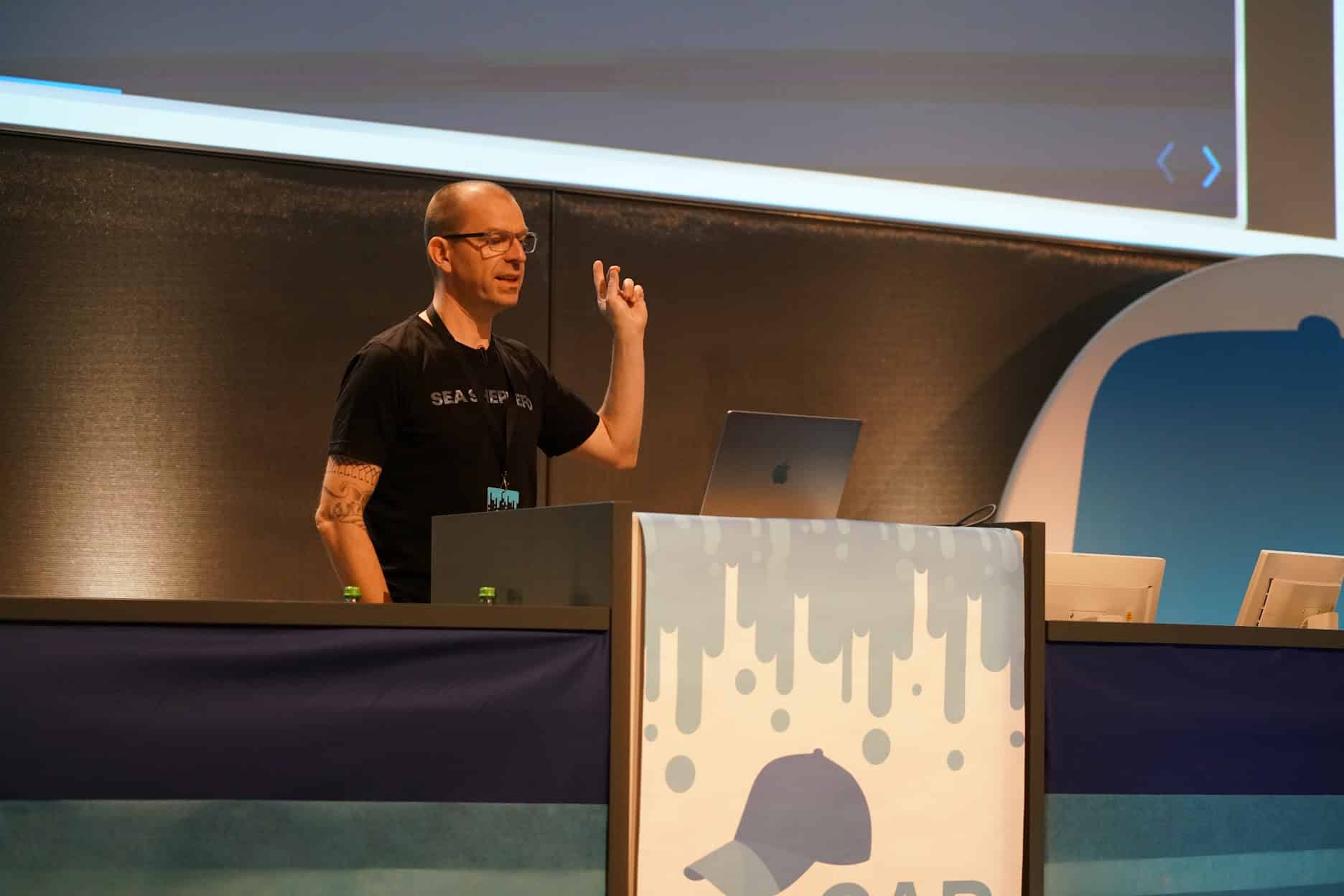
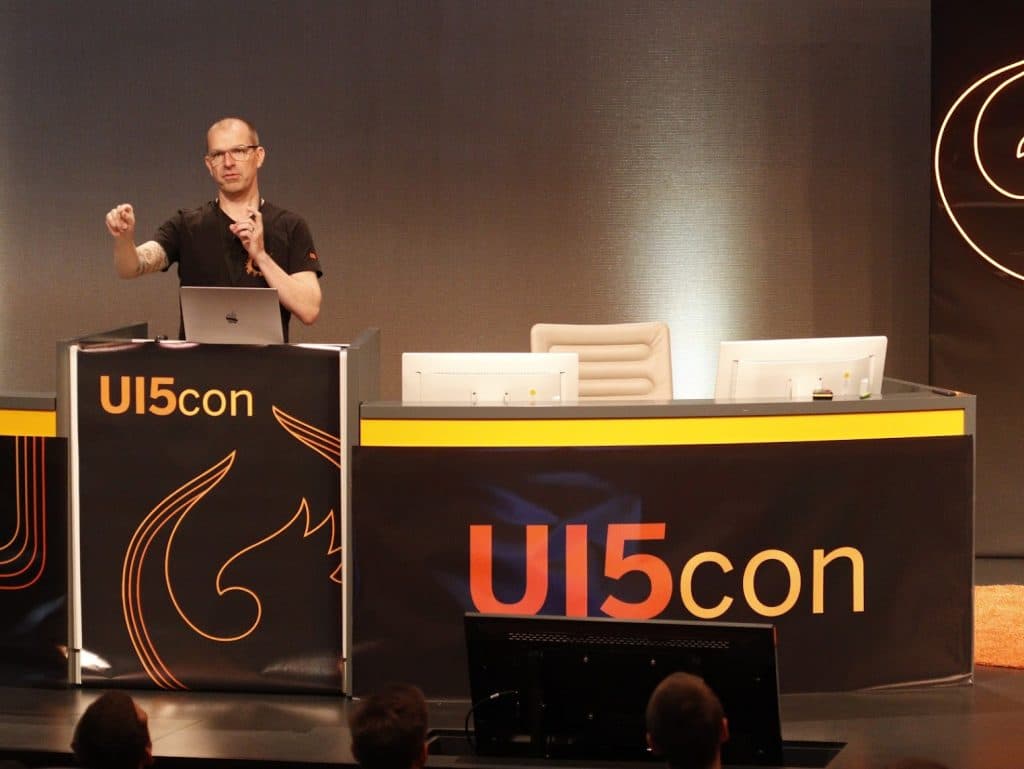
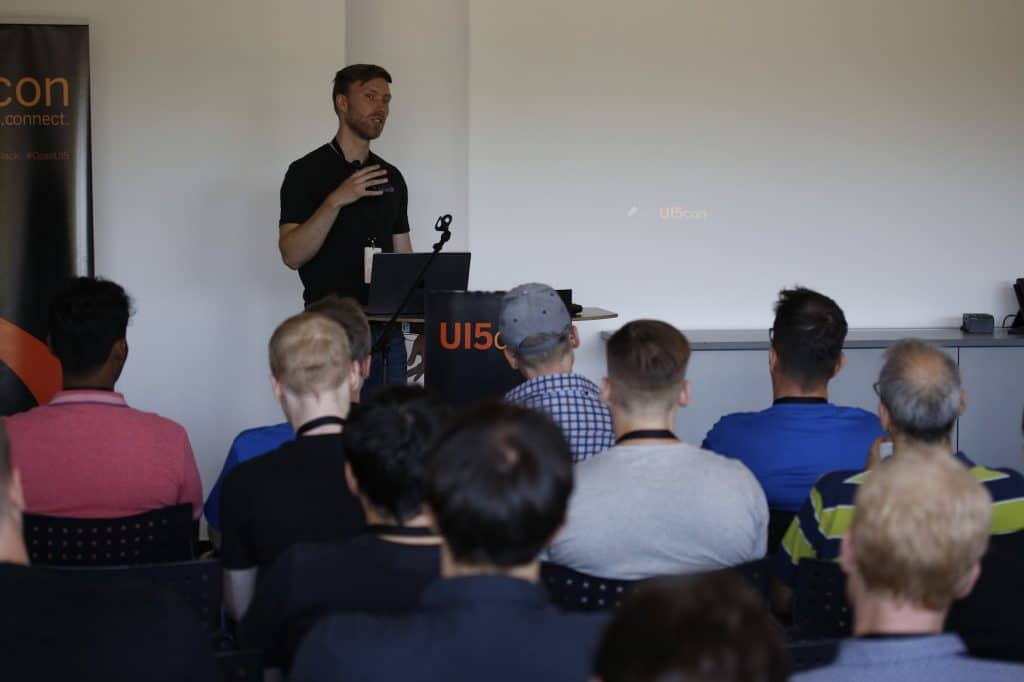
Für Entwickler, die mit UI5 und CAP (Cloud Application Programming Model) arbeiten, war der Juli richtig spannend. Gleich zwei große Veranstaltungen standen an und wir waren nicht nur als Sponsor dabei. Unsere Kollegen Volker Buzek und Simon Coen hielten auf der UI5con am 6. Juli jeweils einen Vortrag: Simon Coen stellte im Vortrag “MockServer for OData v4 Applications” eine interessante Lösung vor. Volker Buzek präsentierte in seinem Vortrag “wdi5 can do that?” fortgeschrittene Szenarien für den Einsatz von wdi5, eine ursprünglich von j&s-soft entwickelte Open Source Anwendung, mit der sich automatisierte Tests während der Entwicklung und im Continuous Integration-System für Freestyle- und Fiori Elements etablieren lässt. Bei der reCAP am 7. Juli hielt Volker Buzek den Vortrag „Process-driven software development with BPMN/DMN and CAP“. Wir freuen uns sehr, dass wir mit unseren tollen Kollegen auch inhaltlich bei beiden Veranstaltungen Beiträge leisten konnten.
Nach der reCAP gab Volker Microsoft noch ein Interview zum Thema
Adaptation projects offer a great way to extend the SAP standard apps. This blog gives an introduction about what requirements have to be met, and it should also serve as a cheat sheet for developers. Thus, the blog is split up into two main sections. The first one ensures feasibility whereas the second part focuses more on the development side of an adaptation project.
Feasibility of an Adaptation Project
Adaptation Project
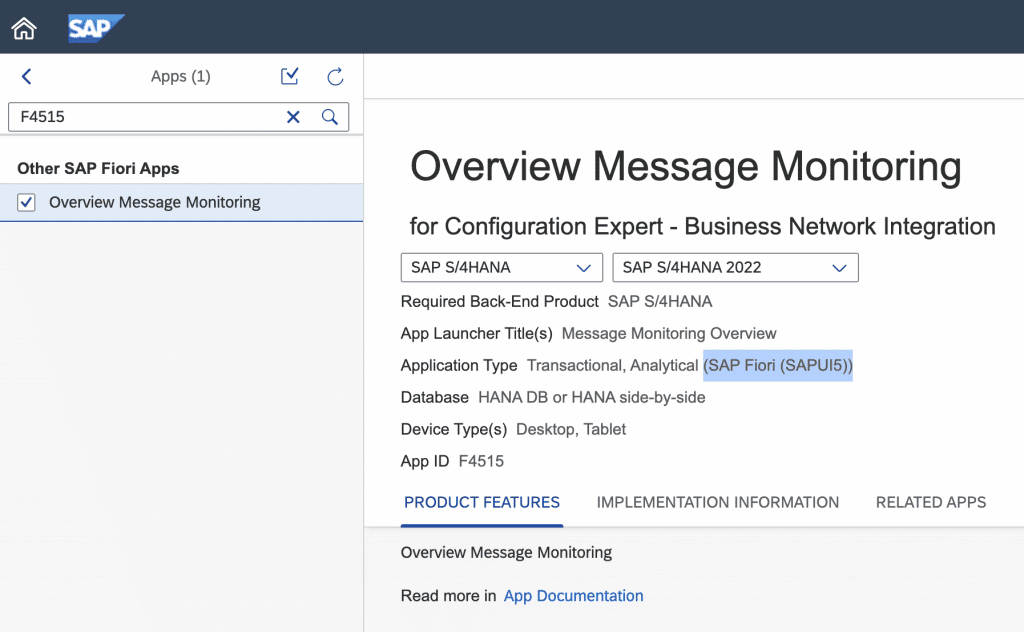
Adaptation Projects are used to meet customer requirements in SAP Standard Apps. Examples can be adding custom behavior which will be invoked by pressing an added button to the standard app. Be aware that not every standard app delivered by SAP can be extended with an adaptation project. Only the apps which are developed with SAP UI5 can be extended this way. In the Fiori apps library, it is easy to determine the developing language of the app.
Entry of the Fiori apps library which can be extended
Once the criteria are met and the app can be extended with an adaptation project the visual editor comes into place. The visual editor is integrated into the SAP Business Application Studio (SAP BAS) which allows the user to adjust the properties of the standard app as well as to add custom controls and logic. To do so rightclick on the area which should be extended and add your control or logic. There is a safe mode that can be activated, this one should ensure that the extension will work with future system upgrades.
Make the Adaptation project visible
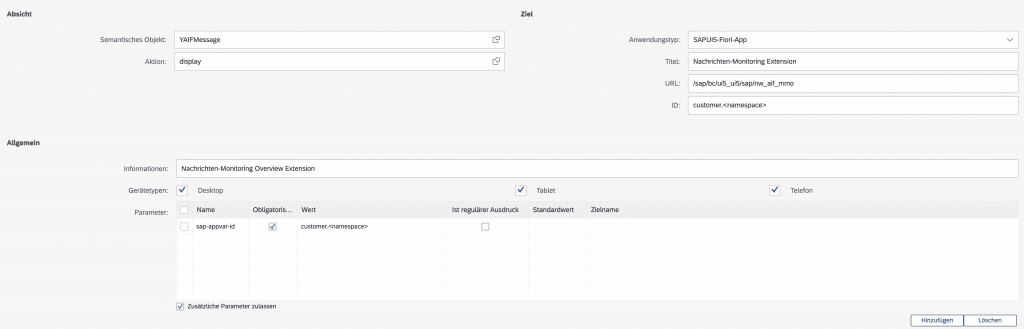
To test the adaptation project in the original app the launchpad customizing has to be adjusted. Therefore it is best practice to create a new mapping for the routing as well as a new tile which will then open the created variant. Hence, the standard app will still be available if in the deployed extension an error occurs. The target mapping requires the parameter sap-appvariant-id and should look like the following:
Target mapping of an adaptation project
Once the target mapping is created the app variant (the adaptation project) can be called by using the # of the original app in combination with the URL parameter sap-appvar-id: #YAIFMessage-display?sap-appvar-id=customer.<namespace>
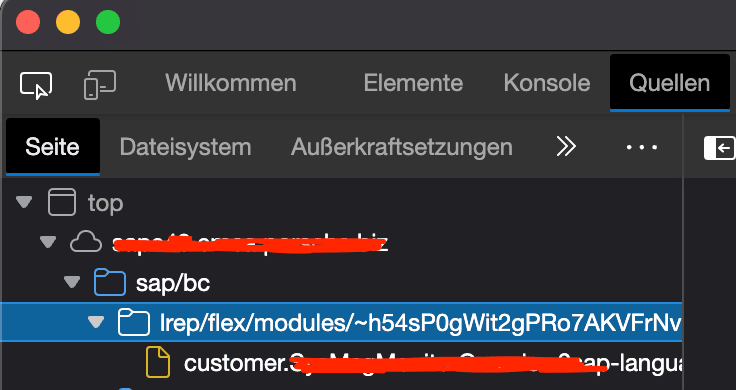
To ensure, that the adaptation project is called the inspector is required. Above the directory of the developed and standard apps there will be another directory for adaptation projects.
Debug extension
In the inspector, you then can see that a directory lrep/flex/modules which contain the extension. In this directory, you can find the coding of your adaptation project. If this entry is not listed then it is a hint that there might be a syntax error within your extension.
Useful tools by SAP
SAP delivered some useful tools to further investigate an app. As a reminder those tools are listed with the corresponding keyboard shortcuts.
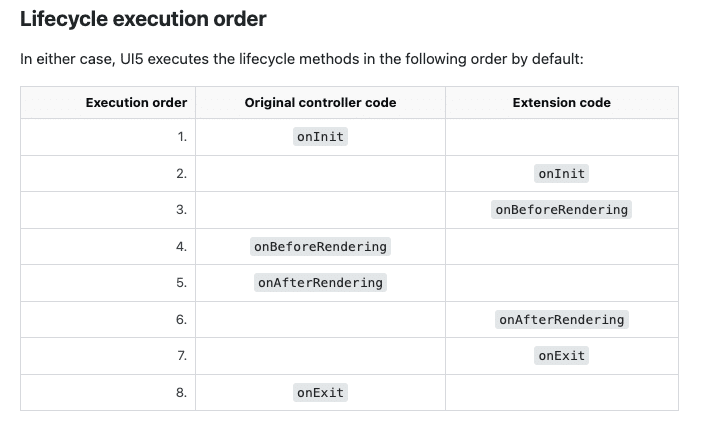
In the adaptation project it is possible to either override the methods of the extended controller (be careful on this one), to define your methods and execute them as well as to override the lifecycle methods of the standard app. When overriding lifecycle methods be aware that your coding in the extension will not replace the coding of the standard app – rather your coding will be called before or after the lifecycle method of the standard app. See the following picture as a demonstration.
The context of the controller extension can be retrieved via
this.base.extension.<namespace>
(in the debugger). The context of the extented controller can be retrieved via
this.base.getView().getController()
Contexts and extension Methods
The following information lists the commands to navigate between the contexts of the controller and the extension. Hence, use the controller context of the original app as well as the context of the extension.
to retrieve a control if it is available (fully rendered and with available data)
to automatically scroll up and down in an section
var intervalId = setInterval(
    () => {
        var oExtContext = this.base.extension.customer.namespace.OverviewExtension
        // if the cards (especially the headers) are rendered
        if ($("div[id*='cardHeader']")[0]) {
            ...
            window.clearInterval(intervalId);
        }

    },1000, this, intervalId);
Problems which can occur
More than one extension project could be required while navigating to a detail view (check the app ID after navigating)
If the standard app uses the OData v4 Model it can be very hard to retrieve the data which are bound to the view. Since the Model / Context methods getProperty() and getObject() are not available in the v4 Model. On a binding (get it from the view) it is possible to use the method requestObject() which then will return a promise.
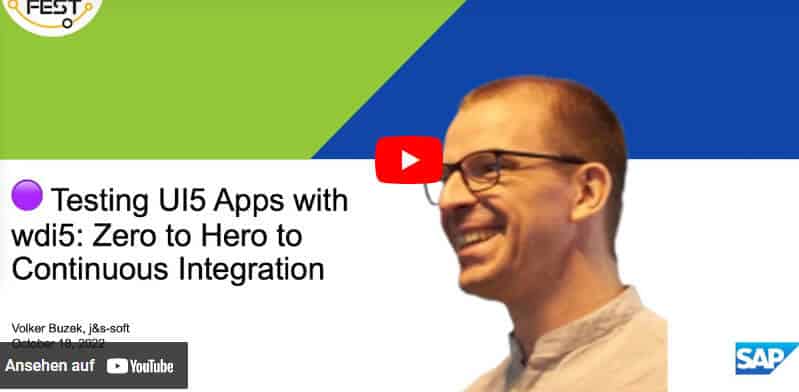
Beim Devtoberfest, einem Vortragsmarathon für Entwickler im SAP-Umfeld, fließt das Wissen wie das Bier auf dem Münchner Original. Themen sind ABAP, Cloud native, Low Code/No-code, Data and Analytics und User Interface. Mit dabei war auch dieses Jahr unser Kollege Volker Buzek. Er präsentierte das von uns in diesem Jahr veröffentlichte Testwerkzeug wdi5 in dem Vortrag: “Testing UI5 Apps with wdi5: Zero to Hero to Continuous Integration.” Die Aufzeichnung des Vortrags finden Sie hier. Mehr zur Veranstaltung hier.
Wer gleich mehr über wdi5 wissen möchte: Hier der Link zu wdi5 in der offiziellen UI5 Dokumentation.
TL;DR: The Fiori cosmos has a lot of expressions. There are standard Fiori apps as well Fiori lighthouse apps available. Also, there are several options to develop our own Fiori app. In this blog we clarify some of the terms to get everybody on the same page for the upcoming blogs.
Introduction
When someone mentions Fiori he/she often refers to a Fiori standard app. Even though there is a huge Fiori world with a lot of terms. In this blog series we are digging a bit deeper into the Fiori world. We will show the differences between Fiori apps as well as how you can extend them. Either by customizing your Fiori apps or by extending them. To get things started we focus on the question what types of standard Fiori apps exist and how do they differentiate.
Since we see our blogs as an exchange of ideas, feel free to add comments as well as get in contact with us.
Fiori Introduction
To get things started I want to get all of us on the same page. Hence, we will start very basic and discuss about what Fiori is.
Fiori is/are basically design guidelines which describe how apps should look and feel. Thus, all Fiori apps should follow those design guidelines.
Beside the Fiori apps there are also the Fiori-like apps and the UI5 freestyle apps. Fiori-like apps are apps which follow the design guidelines most of the time but they have little twists which are not in the Fiori design guidelines. For example a button could have a different design or is placed on a different part of the UI where the design guidelines doesn’t intend it. Such changes occur often during development. The other option is to create a ‘UI5 freestyle app’. Those apps are not bound to the Fiori design guidelines. Hence, it is possible to create the app any way you want it. In those kind of apps we have the possibility to create our own button or a line in a table with our own design. A sample for such custom controls would be the following two pictures. This custom control is part of a todo-list. The list item will cross out the text and the due date as well as provide a green border once the task is marked as solved.
Fiori lighthouse app vs Fiori standard app
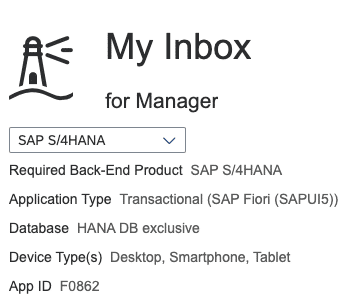
Since this blog series focuses on the Fiori standard apps, we will now take a look at the two different Fiori app types which are provided by SAP. There are the Fiori standard apps and the Fiori lighthouse apps. The lighthouse apps are also standard apps, because they are provided by SAP as well by SAP. They serve more or less as an entry point to the Fiori standard apps. Both types of apps are found in the Fiori Apps Library. The lighthouse apps will be displayed with a lighthouse in front of the name.
When we compare the Fiori standard apps and developed apps, we can quickly realize that apps which are developed by SAP are cheaper and provide customization and extension options. Whereas on the other hand a developed Fiori-like or freestyle UI5 app provides more flexibility as well as more options during the complete development process. In the upcoming blogs we will display some useful features as well as some tips and tricks to enhance a standard app. The first topic we discuss will be modifications as well as enhancements of the UI.
TL;DR: With a custom-theme as well as with the key-user tools we are able to quickly make changes that our Fiori apps or our Fiori Launchpad appear in a new brilliance. With a bit more time we can start an adaption project to enhance the functionality of a Fiori app.
Introduction
This is the second post of this blog series. In this blog post I want to show you which customization options there are for Fiori apps. We will focus on the UI, since there are several interesting opportunities to modify the UI.
There are three options:
We can create a custom-theme
We can leverage the key-user tools to modify the UI during runtime
We use the Web IDE or Business Application Studio to manually write a small extension via an adaptation project.
What kind of customization can users do on their launchpad?
There are several possibilites to create as well as to customize the Fiori Launchpad (FLP). With an Plug-In it is possible to add custom coding to the FLP. This might be useful to alert user of upcoming events or system downtime. With the Plugin it is also possible to add icons to the headerbar of the FLP. To do so an renderAPI has to be used within the plugin.
The Plugin can be build with the Web IDE. Sure today there will be several options to do so.
The created plugin is based on SAP UI5. Hence, it consits of an Component.js and a manifest.json file as well as the lifecycle methods of an UI5 app. With the lifecycle methods and the UI5 infrastructure we can develop our own coding. E.g. create a model and attach it to a datsource to retrieve or send data to an oData service.
If your intend is to simplay brand the FLP in a certain with (e.g. with your company colors) then there is the possibility to create a custom them, which will be discussed in the next section.
Custom-theme
The first option to modify the UI is to make use of a custom theme. To create a custom theme we use the ‘Theme Designer’. You can start the theme designer with transaction UI5/THEME_DESIGNER (important: use chrome as a browser since it doesn’t work in every browser).
The start screen of the theme designer looks like the following picture. From here you can modify or create a new theme.
When you create a new theme you will be asked to enter a link, which points to the app. Here you can enter the link of your Fiori Launchpad. By doing so all apps on the launchpad will appear in the same theme once the theme is set.
When the theme is created and built (via safe & built in the picture above) it is available on the chosen apps. All users can access it from the launchpad settings in the user menu. Moreover, it can be set as a default theme. To set a theme as the default theme on the Fiori launchpad there are further transactions. The first one is used to set a created theme as default theme for the system UI2/NWBC_CFG_CUST. The second transaction is for the administration of the themes UI5/THEME_TOOL.
Key-user tools
The key-user tools are a set of apps which provide different extensibility options. The key-user apps were developed by SAP to make extension projects easier and more cost efficient. In some parts, this works well. One example is that with the key-user tools we are able to modify the UI of an app during runtime. With the UI adaptation it is possible
to sort sections of an app via drag and drop
to combine fields (or split combined fields)
to hide fields
to change labels
as well as to add new fields to the UI.
When you want to play around with them assign the role SAP_UI_FLEX_KEY_USER to your user and activate the ICF node /sap/bc/ui2/flp. Once this is done, you can start the key-user tools via the user menu.
P.S. we set a custom theme and hence the apps in our Fiori Launchpad look different.
The changes you’ve made can be added to a transport request and hence they can be made available for specific systems.
Adding new fields to the UI can be a bit tricky, as it depends on the fields the OData service sends to the app. If the desired field is not available in the app, the OData service has to be extended. Even though the key-user tools are a strong tool, sometimes it is not suitable and we need to manually extend the app ourselves. To do so, we will take a look at adaptation projects.
Adaptation project
Another way to customize the UI or the application logic of an app is via an adaptation project. This can be in the Web IDE or the Business Application Studio. With an adaptation project it is possible to see which extension points are available. Extension points are kind of predefined interfaces. With those extension points it is possible to quickly extend the existing app.
Another way to discover the extension points is to check the section ‘Extensibility’ in tab ‘Implementation Information’. In the section is a link to a documentation page about the different extensibility options for the specific app.
In order to extend apps this way, we have to make sure that they are developed with UI5. You can see this when you select an app in the Fiori apps library and then check the application type.
With the presented customizing options we can quickly make useful changes as well as let Fiori apps appear in our own theme. When more changes on a Fiori app are desired an adaption project might be the correct choice. In the next post we will take a look towards a more technical extensibility feature which comes handy into place when the adaption project does not provide enough extensibility features.
TL;DR: Watch the recordings of re>≡CAP 2021, the 2nd edition of the “(un)conference on the SAP Cloud Application Programming Model”, that streamed June 25th, 2021.
Another pandemic-dominated year, another virtual re>≡CAP conference – but with the same positive vibe that already characterized the 2020 event.Sponsored by j&s-soft GmbH amongst others, once again the CAP-Community and the CAP Dev-Team joined forces, this time with many community-led sessions! Not to speak of the “event band” getting back together for both organizing and moderating the event.Sorry if you missed it – but don’t worry, here are the recordings:
Grande Opening (DJ Adams)
DJ Adams queueing in re>≡CAP 2021.
https://play.vidyard.com/ma7n46yzPi1d3G3kVCS817
Keynote (DJ Hutzel)
Keynote – by Daniel Hutzel, showing where CAP is heading and what to expect.
https://play.vidyard.com/MLUY1JmZqSS1oWxePaRwMK
Usability and reusability with CAP (Jorg Thuijls, Tanveer Kaur)
Thanks to the modular nature of CAP, more complex environments can be abstracted out and reused. This can be done by importing an existing EDMX file so an existing service can be called, but much more interesting is the idea if importing a CAP project as a dependency. Database entities or services can be augmented, added to or changed without losing the integrity of the existing tables and services. Service implementations can be shared or ignored.
https://play.vidyard.com/Sqt2ido4prnDgMm7Ror6WY
Enabling collaboration in sales processes – SAP meets Microsoft (Sebastian Esch)
A solution to automate the provisioning of a Microsoft Office 365 environment to support the collaboration between Sales and Engineering people during the creation of a Sales Quote. The solution was built during a Hack2Build event and covers SAP Sales Cloud, S/4HANA, various services on SAP BTP and MS Graph APIs for Teams and SharePoint.
https://play.vidyard.com/7uAiSxi72XgPRqKsggbcKX
Orchestration of micro-frontends with Luigi, Azure AD, CAP & UI5 (Leo van Hengel, Kushal Mokashi)
How Luigi, an orchestration framework to implement micro frontends, plays with Azure Active Directory for authentication, SAP cloud application programming model (CAP) for the development of backend service with authorization and UI5 as frontend technology.
https://play.vidyard.com/F65dtLRR7DEaM2kYnwDYYj
Taking CAP to the next level – with TypeScript (Simon Gaudek)
TypeScript has become an essential part of modern development with Node.js. Not only does TypeScript provide better code completion, but its strong typing also prevents runtime errors. Two tools have been developed by the CAP community that enable the use of TypeScript in CAP projects and support development. This session shows cds2types and cds-routing-handlers.
https://play.vidyard.com/nAnNSeeEo6NCBrSVGnkYwv
Use CAP (Node.js) with other databases than SAP HANA (Mike Zaschka)
Due to its’ modular concept, CAP offers an abstraction layer for database adapters. By using this layer, it is possible to add support for other relational and even non-relational databases. But since there is no out-of-the-box solution provided by SAP, those database adapters need to be implemented by others. In this talk, an overview of the current state of the database abstraction layer (from a non CAP core developer perspective) is given and the Open Source PostgresSQL adapter (cds-pg) implemented by members of the SAP Community is presented.
https://play.vidyard.com/o4Fop888eeVP2ubkKf457o
CAP outside SAP (Tobias Hofmann)
CAP and its components are tightly tailored to work with SAP BTP. Yet, the overall programming model, concepts and the components are open.This presentation shows a CAP solution running on a non-SAP K8s infrastructure and how to get CAP with PostgreSQL as database running on OpenShift.
https://play.vidyard.com/7SuYN5h5fMepFHKBVeZR3D
SAP Support Message Reporting with CAP (Gregor Wolf)
Replicate data from SAP Support Launchpad Incident OData service for local reporting.
https://play.vidyard.com/dMmX1tWrp8y1QZQ68oLeDX
Schema Evolution and Tools (Christian Georgi, Lothar Bender)
See our improvements for schema evolution on SAP HANA in action. Learn how you can build custom build tasks. Get excited about CDS Linting.
https://play.vidyard.com/2vsYgUdDfwqZDpLikqCpGQ
Messaging and Service Consumption (David Kunz)
How to use CAP service consumption and messaging in a grow-as-you-go fashion, quickly iterating on extending the well-known CAP bookshop sample. A remote SAP S/4HANA API is imported, first mocked, then actually called, extending the bookshop to reference remote entities, do partial replication of them, and keep them up to date by subscribing and acting on change events sent by the remote system.
https://play.vidyard.com/SwdrZEQefMQtw3f1r6X7CH
Star Wars API rewritten in CAP (Thomas Jung)
What started as a holiday season fun diversion turned out to be a rather robust opportunity to explore the extreme edges of CAP capabilities, including bi-directional, many-to-many relationship modeling, bulk loading of data via CAP CQL, and annotations for semantic keys and value help.
This is the second post of this blog series. In this blog post I want to show you which customization options there are for Fiori apps / SAP standard apps. We will focus on the UI, since there are several interesting opportunities to modify the UI.
There are three options:
We can create a custom-theme
We can leverage the key-user tools to modify the UI during runtime
We use the Web IDE or Business Application Studio to manually write a small extension via an adaptation project.
Custom-theme
The first option to modify the UI is to make use of a custom theme. To create a custom theme we use the ‘Theme Designer’. You can start the theme designer with transaction UI5/THEME_DESIGNER (important: use chrome as a browser since it doesn’t work in every browser).
The start screen of the theme designer looks like the following picture. From here you can modify or create a new theme.
When you create a new theme you will be asked to enter a link, which points to the app. Here you can enter the link of your Fiori Launchpad. By doing so all apps on the launchpad will appear in the same theme once the theme is set.
When the theme is created and built (via safe & built in the picture above) it is available on the chosen apps. All users can access it from the launchpad settings in the user menu. Moreover, it can be set as a default theme. To set a theme as the default theme on the Fiori launchpad there are further transactions. The first one is used to set a created theme as default theme for the system UI2/NWBC_CFG_CUST. The second transaction is for the administration of the themes UI5/THEME_TOOL.
Key-user tools
The key-user tools are a set of apps which provide different extensibility options. The key-user apps were developed by SAP to make extension projects easier and more cost efficient. In some parts, this works well. One example is that with the key-user tools we are able to modify the UI of an app during runtime. With the UI adaptation it is possible
to sort sections of an app via drag and drop
to combine fields (or split combined fields)
to hide fields
to change labels
as well as to add new fields to the UI.
When you want to play around with them assign the role SAP_UI_FLEX_KEY_USER to your user and activate the ICF node /sap/bc/ui2/flp. Once this is done, you can start the key-user tools via the user menu.
P.S. we set a custom theme and hence the apps in our Fiori Launchpad look different.
The changes you’ve made can be added to a transport request and hence they can be made available for specific systems.
Adding new fields to the UI can be a bit tricky, as it depends on the fields the OData service sends to the app. If the desired field is not available in the app, the OData service has to be extended. Even though the key-user tools are a strong tool, sometimes it is not suitable and we need to manually extend the app ourselves. To do so, we will take a look at adaptation projects.
Adaptation project
Another way to customize the UI or the application logic of an app is via an adaptation project. This can be in the Web IDE or the Business Application Studio. With an adaptation project it is possible to see which extension points are available. Extension points are kind of predefined interfaces. With those extension points it is possible to quickly extend the existing app.
Another way to discover the extension points is to check the section ‘Extensibility’ in tab ‘Implementation Information’. In the section is a link to a documentation page about the different extensibility options for the specific app.
In order to extend apps this way, we have to make sure that they are developed with UI5. You can see this when you select an app in the Fiori apps library and then check the application type.
With the presented customizing options we can quickly make useful changes as well as let Fiori apps appear in our own theme. When more changes on a Fiori app are desired an adaption project might be the correct choice. In the next post we will take a look towards a more technical extensibility feature which comes handy into place when the adaption project does not provide enough extensibility features.
When someone mentions Fiori he/she often refers to a Fiori standard app. Even though there is a huge Fiori world with a lot of terms. In this blog series we are digging a bit deeper into the Fiori world. We will show the differences between Fiori apps as well as how you can extend them. Either by customizing your Fiori apps or by extending them. To get things started we focus on the question what types of standard Fiori apps exist and how do they differentiate.
Since we see our blogs as an exchange of ideas, feel free to add comments as well as get in contact with us.
Fiori Introduction
To get things started I want to get all of us on the same page. Hence, we will start very basic and discuss about what Fiori is.
Fiori is/are basically design guidelines which describe how apps should look and feel. Thus, all Fiori apps should follow those design guidelines.
Beside the Fiori apps there are also the Fiori-like apps and the UI5 freestyle apps:
Fiori-like apps
Those are apps which follow the design guidelines most of the time but they have little twists which are not in the Fiori design guidelines. For example a button could have a different design or is placed on a different part of the UI where the design guidelines doesn’t intend it. Such changes occur often during development.
UI5 freestyle app
The other option is to create a ‘UI5 freestyle app’. Those apps are not bound to the Fiori design guidelines. Hence, it is possible to create the app any way you want it. In those kind of apps we have the possibility to create our own button or a line in a table with our own design. A sample for such custom controls would be the following two pictures. This custom control is part of a todo-list. The list item will cross out the text and the due date as well as provide a green border once the task is marked as solved.
Fiori lighthouse app vs Fiori standard app
Since this blog series focuses on the Fiori standard apps, we will now take a look at the two different Fiori app types which are provided by SAP. There are the Fiori standard apps and the Fiori lighthouse apps. The lighthouse apps are also standard apps, because they are provided by SAP as well. They serve more or less as an entry point to the Fiori standard apps. Both types of apps are found in the Fiori Apps Library. The SAP lighthouse apps will be displayed with a lighthouse in front of the name.
When we compare the Fiori standard apps and developed apps, we can quickly realize that apps which are developed by SAP are cheaper and provide customization and extension options. Whereas on the other hand a developed Fiori-like or freestyle UI5 app provides more flexibility as well as more options during the complete development process. In the upcoming blogs we will display some useful features as well as some tips and tricks to enhance a standard app. The first topic we discuss will be modifications as well as enhancements of the UI.
TL;DR: Watch the records of the “reCAP (un)conference on the SAP Cloud Application Programming Model”, hosted on 15th of May 2020.
In May 2020, j&s-soft GmbH made it happen: We hosted the “reCAP (un)conference on the SAP Cloud Application Programming Model” establishing the link between the CAP-Community and the CAP Dev-Team! We were blessed with state of the art information and hands-on coding sessions by great lecturers including Daniel Hutzel, the CAP-inventor himself. We are quite sorry if you missed it – but don’t worry. Today, we want to share the recordings with you so you can catch up! 🙂
Opening
Welcome words by Volker Buzek and kicking off the event.
In this part of the blog series we are going to create our own business object. After the customization in the previous blogs we are going to take a look about an extensibility option which is provided by the key-user-tools – the app ‘Custom Business Objects’. With this app we are able to create a new database table, an application logic as well as an OData service within a matter of minutes. With the created OData service we can quickly create an Fiori application which we can then integrate on our Fiori Launchpad after deployment.
Create a Custom-Business-Object
In order to create a custom business object start the app ‘custom business object’ and create a new business object. After entering a name for the new object we receive the following overview (first picture).
With the different tabs we are able to set the details of the business object. When creating a new business object it is useful to set the checkbox ‘Service Generation’. By setting this checkbox an OData service, based on cds-views, will be generated. This OData service enables us to activate it in our sap system.
For the purpose of this post we activated the OData service and requested the metadata in a browser.
With the activated OData service we have several options to use the created structure to our needs. We could go the way of ‘side-by-side’ extensibility and build an app which modifies our data outside of our system. With the help of the Web IDE or Business Application Studio we can create an Fiori app, developed with either Fiori Elements or SAP UI5. For this post we chose to create the app with an Fiori Elements template in the Web IDE.
In the Web IDE we create a new project from template, choose the desired template and then use the category ‘service url’ to select the activated OData service. There is a minor prerequisite to be able to use the category ‘service url’. In your environment (cloud-foundry or neo) a connection to the source system, in which we just created the custom business object, has to be specified. If this is the case you will be able to call the OData service and it should look like something in the picture below. If you don’t have a connection setup you could either set it up or you could use one of the other two options (a custom UI5 or CAP app) to work with your data from the created business object.
Once we are done with the development we can deploy it to our system and register it on to the Fiori Launchpad. By doing so the created app will automatically appear in our theme, which we created in the last edition of the blog series.
Closing
As you can see there are several options to customize as well as to enhance the Fiori standard apps without much effort. With a bit more time it is possible to launch different types of extension projects. Let us know about your experiences with the customization and extension of Fiori standard apps!